
Quick Open
Access USave instantly with shortcuts that launch the app with your preferred input method already selected.
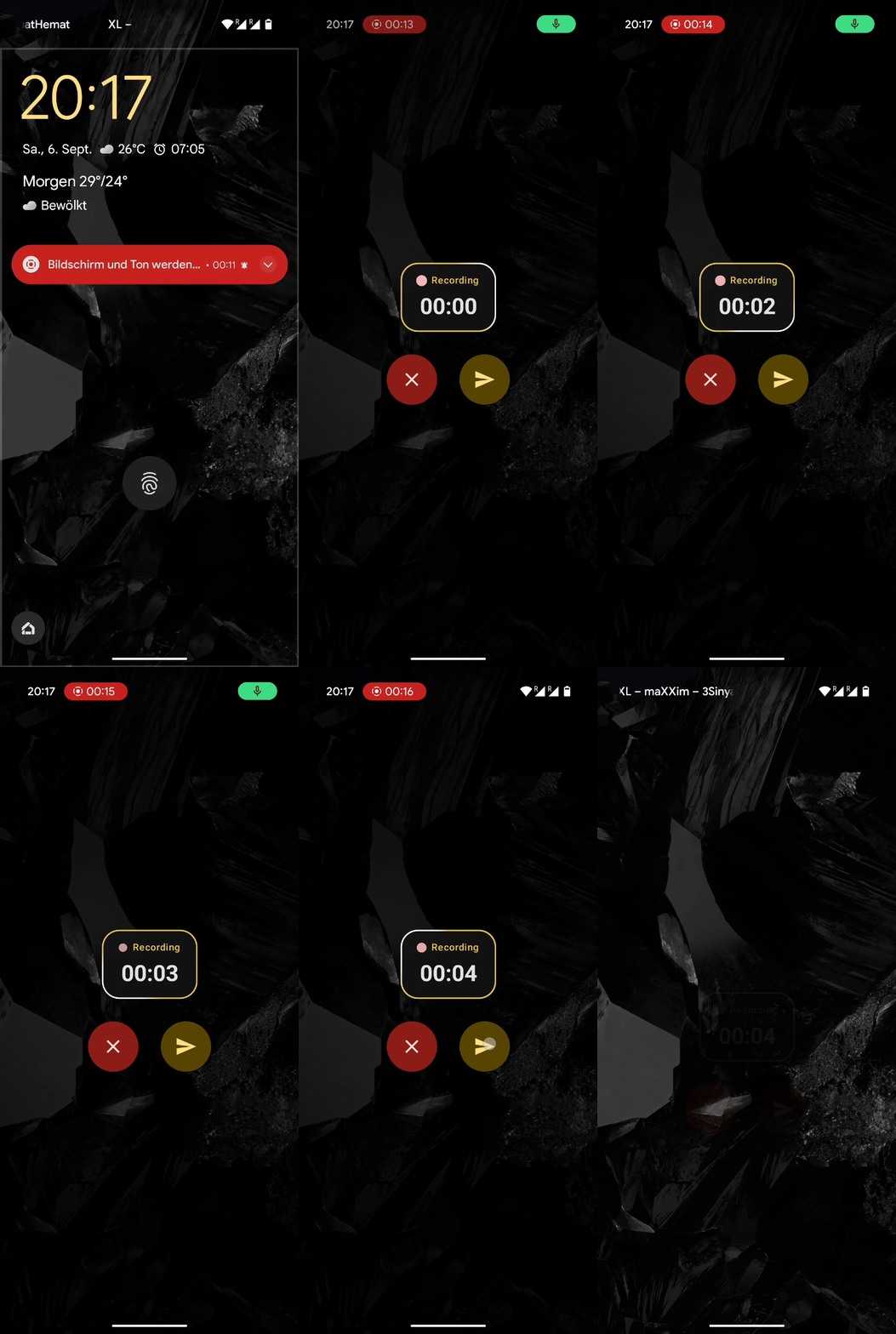
What is Quick Open?
Quick Open allows you to create shortcuts that open USave directly to a specific capture mode. Instead of opening the app and then selecting your input type, these shortcuts take you straight to the capture interface.
How to Configure
- Open USave Settings: Navigate to the Settings tab in the app.
- Find Quick Open: Look for the "Quick Open" section.
- Create Shortcuts: Configure shortcuts for different input types:
- Text Input: Opens directly to the text capture interface
- Audio Input: Opens directly to the voice recording interface
- Image Input: Opens directly to the image capture interface
- Set Default Database: Choose which Notion database each shortcut should save to.
Available Input Types
📝 Text Capture
Opens directly to the text input field. Perfect for quick notes, ideas, and written content.
🎤 Audio Capture
Starts voice recording immediately. Great for voice memos, meeting notes, and hands-free capture.
📷 Image Capture
Opens the camera or image selector right away. Ideal for capturing documents, screenshots, and visual content.
Tips for Efficient Use
- Create Multiple Shortcuts: Set up different shortcuts for different workflows (e.g., work notes vs. personal ideas).
- Use with Widgets: Combine Quick Open with home screen widgets for one-tap access.
- Customize Per Database: Configure different settings for each Notion database you use.